

Stages
Launch with stage 4 (README §4.10). Stage 5 is a later step and does not block launch.
Prerequisites for any test
- HTTPS host for the add-in files. Marketplace and Office on the web require HTTPS. README §4.1 plans the assets under
/addin/*on Valedo.API host (dev.valedo.uniwave.aiin dev). Confirm where the dev assets are actually served before you build the manifest. - The dev
Valedoapp ID from Entra app registrations. The add-in sign-in uses its identifier URI. - A work mailbox in a test tenant. For sideloading in a mailbox, Learn requires the Exchange My Custom Apps role for that account.
- An onboarded test tenant. The signature endpoint answers
tenant_not_onboarded(403) and the add-in inserts nothing until the tenant is in the registry. I found no endpoint, job or documented seed step that creates a tenant document: the Publisher API only lists and reads tenants, and README §4.8 assigns provisioning to the landing page, which is not built. Until it is, a test tenant has to be written directly into thetenantscontainer by an engineer. This is a gap to close first, not a step to improvise.
Create the manifest
The repository has no manifest (src/addin holds only src/, tests/ and build files). Create one before any test. Learn describes two manifest types; which one Valedo ships is an open decision (README §13, item 11).
Sources: Sideload Outlook add-ins, Sideload with the unified manifest, Test on mobile, Activate add-ins with events.
Whichever type you choose, the manifest must:
- carry a unique, valid GUID as the add-in ID and HTTPS URLs for all code and content files;
- include a support URL (Marketplace submission requires it) and the PNG icons listed in
docs/brand.md(16, 32, 64, 80, 128); - subscribe to
OnNewMessageComposeonly. Adding events later makes every customer admin consent again in Integrated apps, so keep the event set stable; - for the add-in only type, leave out the
CustomPaneextension point and theItemSendevent (Marketplace policy 1120.4).
.well-known/microsoft-officeaddins-allowed.json listing the exact event runtime URL (README §4.10). It is not in the repository either.
Test as a custom add-in
Sideload in one mailbox (add-in only manifest)
- Open
https://aka.ms/olksideload. Outlook on the web opens and the Add-Ins for Outlook dialog appears. - Select My add-ins, then under Custom Addins select Add a custom add-in and Add from File. Add from URL is no longer offered; download the manifest and add the file.
- Accept the prompts. In classic Outlook on Windows it can take up to 24 hours for the add-in to appear.
atk install --file-path <package.zip> or npx office-addin-debugging start <manifest> desktop, and stop the session the same way. Outlook on mobile cannot be sideloaded directly; sideload on the web or desktop first, and only an add-in only manifest is supported on mobile.
Upload to a pilot group (Microsoft 365 admin center)
- Sign in as an admin of the test tenant: Settings → Integrated apps → Upload custom apps.
- Set App type to Office Add-in and upload the XML manifest, or to Teams app and upload the unified package.
- Choose Just me or a pilot group, not Everyone.
- In App Permissions and Capabilities, check the event list shows
OnNewMessageComposeand accept it. - Deploy. A green check means deployed, but the add-in can take 24 to 72 hours to appear. Users may need to restart Outlook.
What to check
- A new message gets the signature of the rule that matches the sender; reply and forward follow
appliesTo. - A body that already starts with the
valedo-signature:marker is left alone. - An unlicensed or unknown tenant inserts nothing, and the task pane explains why. The event handler still completes.
- It works in Outlook on the web (modern), new Outlook and classic Outlook. Outlook on the web (modern) support is a Marketplace rule.
- The handler finishes well inside the roughly 300-second event window and calls
event.completed()on every path.
Publish to Microsoft Marketplace
Order matters. Steps 1 to 3 are cheap and block everything after them.- Publisher account. Partner Center commercial marketplace profile with legal, tax and payout details and contacts. Standard Partner Center step; not re-verified here.
- Domain and publisher verification. Verify the domain and complete publisher verification for the
Valedoapp (steps). Publisher verification is also a prerequisite of Microsoft 365 Certification. - Pricing decisions. README §13 items 1 to 3 (20 or 40 EUR base fee, billing basis, which mailboxes count). The pricing model cannot change after publishing.
- Create a separate DEV offer first. Learn recommends it. Test with nominal amounts in preview and never press Go live on the DEV offer, which would publish it to the storefront. Test purchases are billed; a purchase cancelled within 72 hours is refunded on the next month’s invoice.
- Configure the offer. Flat rate, one plan,
additional_mailboxmeter, 14-day trial, technical configuration: values in Marketplace and tenant setup. Landing page and webhook must run 24/7 and carry no#or secrets in the URL. - Fill the listing (table below).
- Link the add-in. Enter the
Valedoapp ID under Microsoft 365 integration and link the add-in listing. Learn describes linking them as a single SaaS offering. Learn’s Teams guidance publishes the app before creating the SaaS offer; confirm the order for an Outlook add-in in Partner Center. - Write the certification notes (below), then submit. After automated validation the offer reaches Publisher signoff and preview links appear under Go live.
- Test end to end in preview with the preview audience: purchase, landing page, activation, each webhook event (
Subscribe,ChangePlan,ChangeQuantity,Renew,Suspend,Reinstate,Unsubscribe), plan change, cancellation and metering events, including duplicates and an instant cancel. - Go live with the production offer, as a restricted add-in listing with a flight code. Admins deploy the add-in from Integrated apps.
- Later: attestation and certification. Complete Publisher Attestation (available for Outlook and SaaS, valid one year, renewed yearly), then Microsoft 365 Certification (evidence within 60 days of the initial approval). After certification, request an unrestricted listing with the form at
https://aka.ms/AutoLaunchForEndUser.
Listing fields
Sources: Plan a SaaS offer, Listing details, Listing guidelines.
Certification notes
Put these in Notes for certification (policy 1120 and 1120.4, certification policies):- How to configure and test the
OnNewMessageComposeauto-launch scenario, including a test tenant that is already onboarded and a reviewer account. - A disclosure in the offer description of what is inserted and when, for example “The tenant’s signature is inserted when a user starts a new message, reply or forward.”
- How the add-in uses single sign-on, which functions use it, and the fallback method. Offers with SSO must include a fallback authentication method.
- Confirmation that the add-in supports Outlook on the web (modern).
After go-live
Raise the manifest version for every Marketplace update. Adding events, permissions or supported Office applications triggers admin consent for existing deployments. Renew Publisher Attestation every year or its status is revoked.Readiness review
Reviewed on 2026-10-31 against Microsoft Learn (links above and in the sources list) and the repository at the head ofdevelop. Verdict: Valedo does not meet the requirements for a transactable SaaS offer yet. Status values: Met, Partly, Not met, Not verified (cannot be shown from the repository).
Blockers, in order
- Build the landing page: Entra sign-in, Resolve, tenant provisioning, Activate. It also unblocks trials, tenant onboarding for tests and the end-to-end preview.
- Create the add-in manifest, the allowed-origins file and the add-in sign-in, and decide the manifest type (README §13, item 11).
- Build the mailbox counter and usage emitter (README §4.9) and validate them on a preview plan.
- Close the pricing questions and finalise the legal texts.
- Create the DEV offer, run the preview test, then write the listing and certification notes.
Sources
- Plan a SaaS offer, Technical configuration, Test and publish a SaaS offer
- Build the landing page, Webhook, SaaS free trials
- Listing options for event-based add-ins, Office Add-ins manifest
- Publisher Attestation, Microsoft 365 Certification
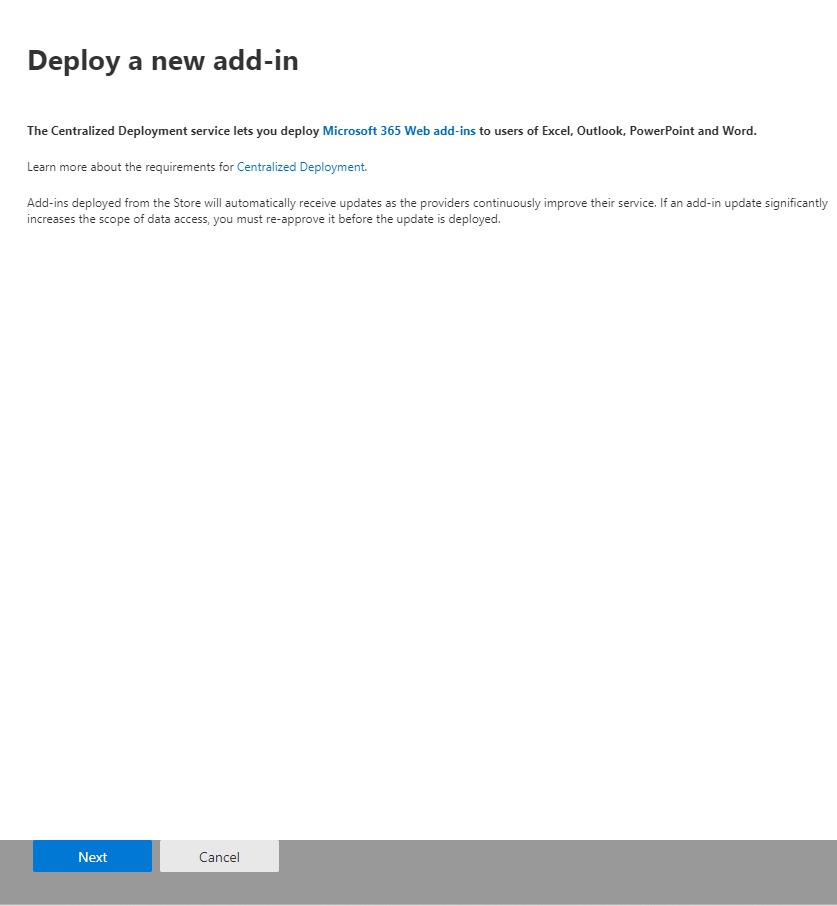
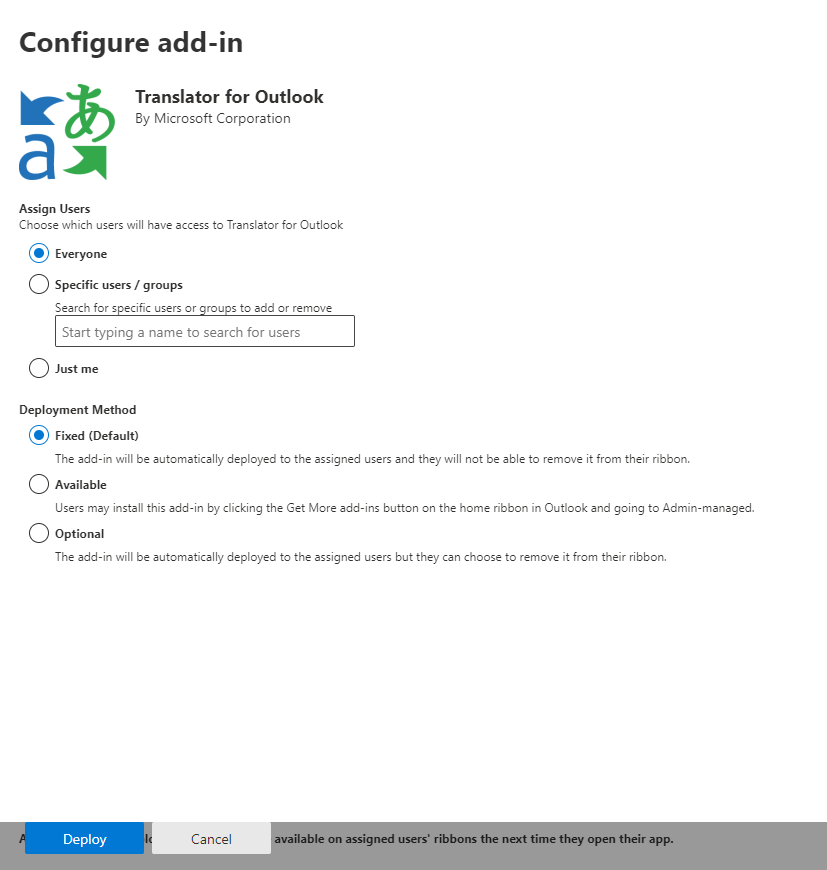 Learn notes that the add-in portal path shown above supports only add-ins that use the add-in only manifest. Add-ins that use the Microsoft 365 unified manifest deploy from the integrated apps portal.